 Secret Codes guide
iPhone No Service Or Searching: How to Fix It
By Muhammad Shahid · · 5 min read
Quick answer
Your iPhone is not registered on any cellular network. No Service means your iPhone has given up looking for a network. Searching means it is still trying. Both indicate the same underlying condition: the device is not attached to a cellular network, so calls, texts and cellular data are all unavailable.
Secret CodesDial codes, SIM & network test · Free on the App StoreDownload free →| What it does | Your iPhone is not registered on any cellular network. |
|---|---|
| Published for | any iPhone, Verizon, AT&T, T-Mobile and UScellular |
| Type | iOS setting |
Your iPhone is not registered on any cellular network. This page explains what it does, how to use it on an iPhone and which carriers it applies to.
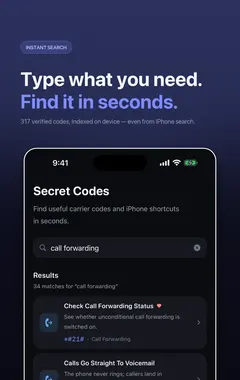
I build Secret Codes: IMEI & Carrier, a free iPhone app with 317 checked codes and guides, including this one. If you would rather tap than memorise, get Secret Codes on the App Store.
Why does this happen and how do I fix it?
No Service means your iPhone has given up looking for a network. Searching means it is still trying. Both indicate the same underlying condition: the device is not attached to a cellular network, so calls, texts and cellular data are all unavailable.
The cause is usually one of four things — genuine lack of coverage, a line that has been suspended or deprovisioned by the carrier, a SIM or eSIM that has stopped being read, or a modem that has got stuck and needs to re-register. The first three need the carrier or a SIM change. Only the last is fixed on the device, and it is fixed quickly.
Work through the steps in order and test after each one. If you reach the end and still see No Service in a place where your phone normally works, the fault is on the carrier side or is a hardware fault, not something another setting will cure.
Important: Reset Network Settings erases every saved Wi-Fi password, preferred network, VPN and APN configuration. Make sure you can get back onto your home and work Wi-Fi before you use it.
What should I try, in order?
- Turn Airplane Mode on for at least 15 seconds, then off. Apple specifies 15 seconds because the network detach has to complete before the device re-attaches.
- Restart your iPhone. This clears a stuck modem state that Airplane Mode alone does not always release.
- Open Settings, tap Cellular and confirm the line is present and switched on. On a dual-SIM iPhone, tap the line and tap Turn On This Line if it is off. If you use a physical SIM, remove the tray, reseat the SIM and close it fully.
- Check for a carrier settings update: Settings, General, About, then wait about 30 seconds for a prompt. Then install any pending iOS update.
- Call your carrier from another phone and ask them to confirm the line is active, has no billing block, is not barred, and that there is no outage at your location.
- If the carrier confirms the account and network are fine, the remaining likely cause is hardware. Book a Genius Bar or authorised service appointment.
Which carriers does this apply to?
| Published for | any iPhone, Verizon, AT&T, T-Mobile and UScellular |
|---|---|
| Type | iOS setting |
| Good to know | The steps are the same on every US carrier. What differs is how quickly the carrier can re-provision a line once you reach that stage. |
Related fix iphone phone problems
- SOS Or SOS Only In The Status Bar
- Calls Drop Constantly
- Data Does Not Work But Calls Do
- 5G Is Slower Than LTE
- 5G Icon Shows But Nothing Loads
- Carrier Name Missing From The Status Bar
See all fix iphone phone problems or every category of iPhone codes.
How Secret Codes helps
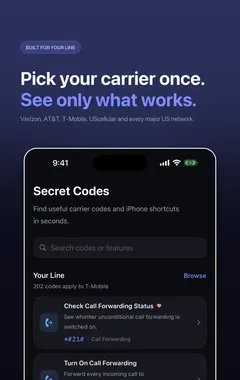
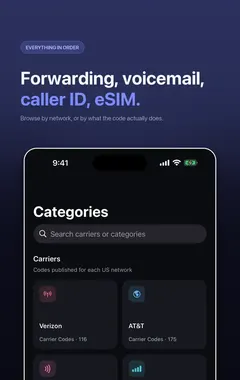
Secret Codes keeps this and every other entry a search away. Pick your carrier once and each entry says whether it is published for your line. You can save favourites, add a private note, and record whether a code worked on your line.
Frequently asked questions
What should I do about No Service Or Searching?
Your iPhone is not registered on any cellular network. No Service means your iPhone has given up looking for a network. Searching means it is still trying.
What else should I know about No Service Or Searching?
Both indicate the same underlying condition: the device is not attached to a cellular network, so calls, texts and cellular data are all unavailable.
What are the steps for No Service Or Searching?
1. Turn Airplane Mode on for at least 15 seconds, then off. Apple specifies 15 seconds because the network detach has to complete before the device re-attaches. 2. Restart your iPhone. This clears a stuck modem state that Airplane Mode alone does not always release. 3. Open Settings, tap Cellular and confirm the line is present and switched on. On a dual-SIM iPhone, tap the line and tap Turn On This Line if it is off. If you use a physical SIM, remove the tray, reseat the SIM and close it fully. 4. Check for a carrier settings update: Settings, General, About, then wait about 30 seconds for a prompt. Then install any pending iOS update. 5. Call your carrier from another phone and ask them to confirm the line is active, has no billing block, is not barred, and that there is no outage at your location. 6. If the carrier confirms the account and network are fine, the remaining likely cause is hardware. Book a Genius Bar or authorised service appointment.
Where do I find No Service Or Searching?
Mostly in the Settings app, following the steps on this page in order.
Is there a dial code for No Service Or Searching?
No keypad code is listed for it. The way to do it is: Fix.
Which carriers does No Service Or Searching work on?
It is published for any iPhone, Verizon, AT&T, T-Mobile and UScellular. The steps are the same on every US carrier. What differs is how quickly the carrier can re-provision a line once you reach that stage.
Is there anything to watch out for with No Service Or Searching?
Reset Network Settings erases every saved Wi-Fi password, preferred network, VPN and APN configuration. Make sure you can get back onto your home and work Wi-Fi before you use it.
Does No Service Or Searching work on Android phones too?
These steps are for iPhone. Android phones have their own menus.
Will No Service Or Searching work outside the US?
The iPhone steps stay the same, although some features depend on your carrier and region.
What if No Service Or Searching does not work on my iPhone?
Check that it applies to your carrier first, because carriers decide which services they offer and can change them. If it should apply to your line, contact your carrier.
What is related to No Service Or Searching?
SOS Or SOS Only In The Status Bar. Your own carrier is unreachable but emergency calls still work.
What else is in this category?
Calls Drop Constantly. Calls connect but end themselves after a minute or two.
Sources
Secret CodesDownload free