 Secret Codes guide
Contact Photo And Poster on iPhone: How It Works
By Muhammad Shahid · · 4 min read
Quick answer
Control the full screen card people see when you call them. Your Contact Poster is the large photo, name styling and background that shows on the other person's iPhone when you ring them. It is edited on your own card in Contacts, not in Settings, which is why so many people never find it.
Secret CodesDial codes, SIM & network test · Free on the App StoreDownload free →| What it does | Control the full screen card people see when you call them. |
|---|---|
| Published for | any iPhone |
| Type | iOS setting |
Control the full screen card people see when you call them. This page explains what it does, how to use it on an iPhone and which carriers it applies to.
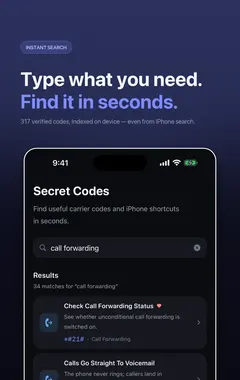
I build Secret Codes: IMEI & Carrier, a free iPhone app with 317 checked codes and guides, including this one. If you would rather tap than memorise, get Secret Codes on the App Store.
What is Contact Photo And Poster?
Your Contact Poster is the large photo, name styling and background that shows on the other person's iPhone when you ring them. It is edited on your own card in Contacts, not in Settings, which is why so many people never find it.
Open Contacts, tap My Card at the top, tap Edit, then tap your contact photo to choose and customise the photo and poster. You can build several and switch between them.
Sharing is a separate switch further down that same screen. Name & Photo Sharing controls whether the poster is sent at all. Contacts Only shares it with people already in your contacts, while Always Ask prompts you each time before anything about you is shared. If your poster never seems to reach anyone, this switch is almost always the reason.
How do I do it?
- Open the Contacts app.
- Tap My Card at the top, then tap Edit.
- Tap your contact photo, then choose and customise your photo and poster.
- Scroll down and turn on Name & Photo Sharing, then pick Contacts Only or Always Ask.
Which carriers does this apply to?
| Published for | any iPhone |
|---|---|
| Type | iOS setting |
| Good to know | iOS 17 or later on any supported iPhone. The recipient also needs iOS 17 or later to see the poster; older devices just show the plain caller screen. |
Related iphone phone and message settings
- Type To Reply To A Caller
- Default Calling And Call Filtering Apps
- Remind Me To Return A Call
- Calls On Other Devices
- Custom Respond With Text Replies
- FaceTime Reachability And Caller ID
See all iphone phone and message settings or every category of iPhone codes.
How Secret Codes helps
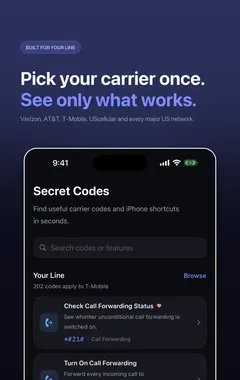
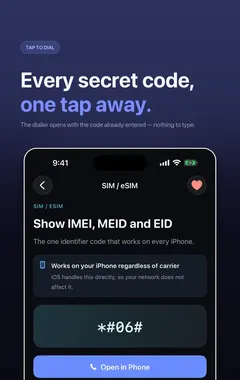
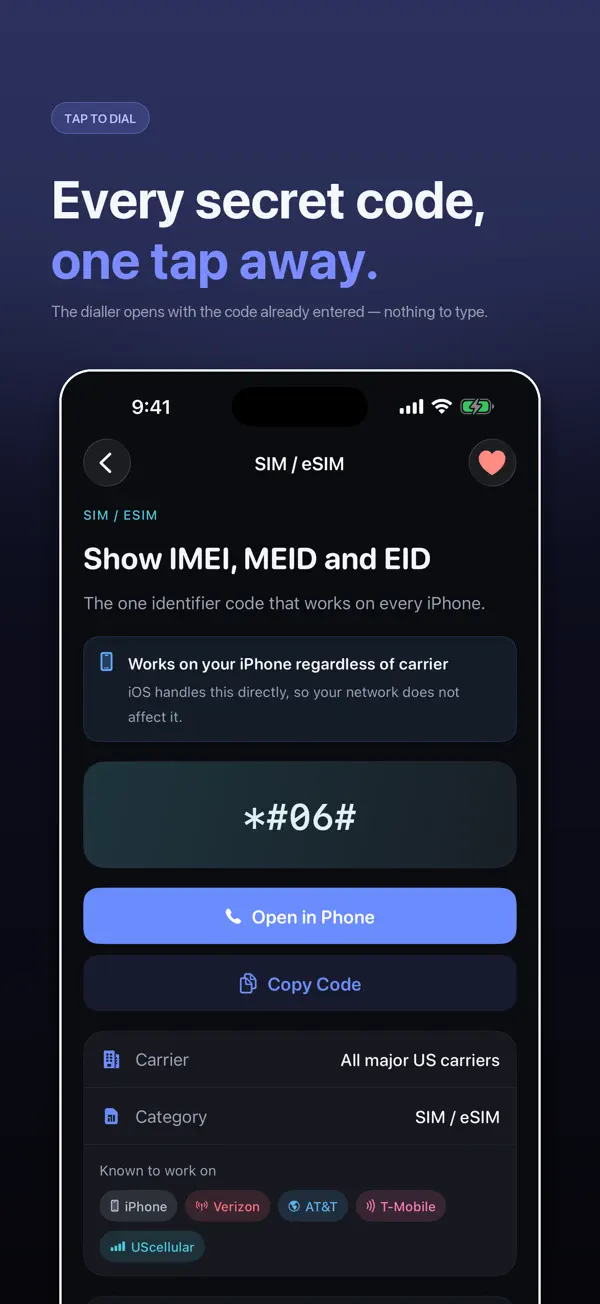
Secret Codes keeps this and every other entry a search away. Pick your carrier once and each entry says whether it is published for your line. You can save favourites, add a private note, and record whether a code worked on your line.
Frequently asked questions
What is Contact Photo And Poster on iPhone?
Control the full screen card people see when you call them. Your Contact Poster is the large photo, name styling and background that shows on the other person's iPhone when you ring them.
What else should I know about Contact Photo And Poster?
It is edited on your own card in Contacts, not in Settings, which is why so many people never find it. Open Contacts, tap My Card at the top, tap Edit, then tap your contact photo to choose and customise the photo and poster. You can build several and switch between them.
What are the steps for Contact Photo And Poster?
1. Open the Contacts app. 2. Tap My Card at the top, then tap Edit. 3. Tap your contact photo, then choose and customise your photo and poster. 4. Scroll down and turn on Name & Photo Sharing, then pick Contacts Only or Always Ask.
Where do I find Contact Photo And Poster?
In the Contacts app on your iPhone.
Is there a dial code for Contact Photo And Poster?
No. On iPhone this is not a dial code, so you use the steps on this page instead.
Which carriers does Contact Photo And Poster work on?
It is published for any iPhone. iOS 17 or later on any supported iPhone. The recipient also needs iOS 17 or later to see the poster; older devices just show the plain caller screen.
Does Contact Photo And Poster work on Android phones too?
These steps are for iPhone. Android phones have their own menus.
Will Contact Photo And Poster work outside the US?
The iPhone steps stay the same, although some features depend on your carrier and region.
What if Contact Photo And Poster does not work on my iPhone?
Check that it applies to your carrier first, because carriers decide which services they offer and can change them. If it should apply to your line, contact your carrier.
What is related to Contact Photo And Poster?
Type To Reply To A Caller. Ask an incoming caller a question in text without picking up.
What else is in this category?
Default Calling And Call Filtering Apps. Choose a third party app to handle calls or caller ID instead of Apple's.
Can I find Contact Photo And Poster in an app?
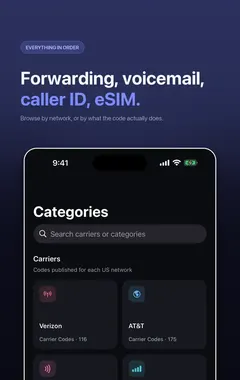
Yes. Secret Codes, a free iPhone app, includes it with its steps and carrier details.
Sources
Secret CodesDownload free