 Secret Codes guide
iPhone You Cannot Hear The Caller: How to Fix It
By Muhammad Shahid · · 5 min read
Quick answer
Separate a blocked earpiece from a bad connection. The receiver — the narrow slot above the screen — is a separate speaker from the one at the bottom edge. Silence on handset calls that clears the moment you press speakerphone points squarely at the receiver being blocked, dirty or faulty.
Secret CodesDial codes, SIM & network test · Free on the App StoreDownload free →| What it does | Separate a blocked earpiece from a bad connection. |
|---|---|
| Published for | any iPhone |
| Type | iOS setting |
Separate a blocked earpiece from a bad connection. This page explains what it does, how to use it on an iPhone and which carriers it applies to.
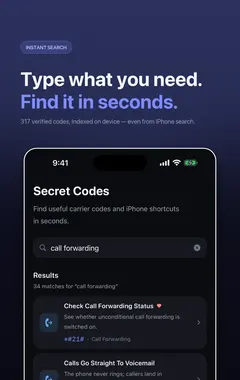
I build Secret Codes: IMEI & Carrier, a free iPhone app with 317 checked codes and guides, including this one. If you would rather tap than memorise, get Secret Codes on the App Store.
Why does this happen and how do I fix it?
The receiver — the narrow slot above the screen — is a separate speaker from the one at the bottom edge. Silence on handset calls that clears the moment you press speakerphone points squarely at the receiver being blocked, dirty or faulty.
Apple's diagnostic is to drag the Ringtone and Alerts slider in Settings, Sounds & Haptics back and forth. No sound at all, or a dimmed speaker button on that slider, indicates the speaker needs service. If that test passes, make a call on speakerphone: static or crackling there is a network and reception symptom rather than a hardware one.
One specific hardware note worth knowing: Apple ran a service programme for iPhone 12 and iPhone 12 Pro units that produce no sound from the receiver on calls. If you have one of those models with exactly that symptom, check eligibility before paying for anything.
What should I try, in order?
- Turn Silent mode off, check that Do Not Disturb is off under Settings, Focus, and raise the volume during an active call rather than on the Home Screen.
- Remove the case, film or screen protector, and check the receiver slot above the screen for dust. Clean it gently with a dry, soft-bristled brush.
- Open Settings, Sounds & Haptics and drag the Ringtone and Alerts slider back and forth. No sound, or a dimmed speaker button, means the speaker needs service.
- Make a call and press speaker. If the bottom speaker is clear and the receiver is not, that is a hardware fault, not the network.
- If both are affected and you hear static or crackling, try the call again later or from another location — that pattern indicates reception, not hardware.
- On an iPhone 12 or 12 Pro with no receiver sound, check Apple's service programme for that exact issue before arranging a paid repair.
Which carriers does this apply to?
| Published for | any iPhone |
|---|---|
| Type | iOS setting |
| Good to know | These are Apple's documented speaker checks. They apply to every iPhone regardless of carrier. |
Related fix iphone phone problems
- Callers Say They Cannot Hear You
- Texts Will Not Send
- Battery Drains Fast In Poor Signal
- Blue Bubbles Turned Green
- iPhone Gets Hot And Loses Signal
- Calls Go Straight To Voicemail
See all fix iphone phone problems or every category of iPhone codes.
How Secret Codes helps
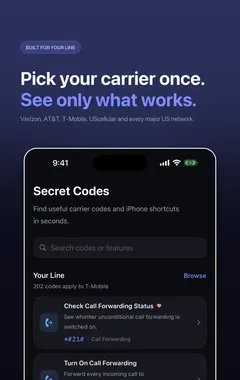
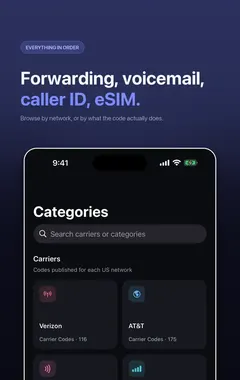
Secret Codes keeps this and every other entry a search away. Pick your carrier once and each entry says whether it is published for your line. You can save favourites, add a private note, and record whether a code worked on your line. This entry is part of Secret Codes Pro.
Frequently asked questions
What should I do about You Cannot Hear The Caller?
Separate a blocked earpiece from a bad connection. The receiver — the narrow slot above the screen — is a separate speaker from the one at the bottom edge.
What else should I know about You Cannot Hear The Caller?
Silence on handset calls that clears the moment you press speakerphone points squarely at the receiver being blocked, dirty or faulty. Apple's diagnostic is to drag the Ringtone and Alerts slider in Settings, Sounds & Haptics back and forth. No sound at all, or a dimmed speaker button on that slider, indicates the speaker needs service.
What are the steps for You Cannot Hear The Caller?
1. Turn Silent mode off, check that Do Not Disturb is off under Settings, Focus, and raise the volume during an active call rather than on the Home Screen. 2. Remove the case, film or screen protector, and check the receiver slot above the screen for dust. Clean it gently with a dry, soft-bristled brush. 3. Open Settings, Sounds & Haptics and drag the Ringtone and Alerts slider back and forth. No sound, or a dimmed speaker button, means the speaker needs service. 4. Make a call and press speaker. If the bottom speaker is clear and the receiver is not, that is a hardware fault, not the network. 5. If both are affected and you hear static or crackling, try the call again later or from another location — that pattern indicates reception, not hardware. 6. On an iPhone 12 or 12 Pro with no receiver sound, check Apple's service programme for that exact issue before arranging a paid repair.
Where do I find You Cannot Hear The Caller?
Mostly in the Settings app, following the steps on this page in order.
Is there a dial code for You Cannot Hear The Caller?
No keypad code is listed for it. The way to do it is: Fix.
Which carriers does You Cannot Hear The Caller work on?
It is published for any iPhone. These are Apple's documented speaker checks. They apply to every iPhone regardless of carrier.
Does You Cannot Hear The Caller work on Android phones too?
These steps are for iPhone. Android phones have their own menus.
Will You Cannot Hear The Caller work outside the US?
The iPhone steps stay the same, although some features depend on your carrier and region.
What if You Cannot Hear The Caller does not work on my iPhone?
Check that it applies to your carrier first, because carriers decide which services they offer and can change them. If it should apply to your line, contact your carrier.
What is related to You Cannot Hear The Caller?
Callers Say They Cannot Hear You. Isolate a blocked microphone from a network problem.
What else is in this category?
Texts Will Not Send. Red exclamation marks on outgoing messages.
Can I find You Cannot Hear The Caller in an app?
Yes. Secret Codes, a free iPhone app, includes it with its steps and carrier details, as part of Secret Codes Pro.
Sources
Secret CodesDownload free