Free tool · runs in your browser
Image to text converter
Copy the text out of a photo, scan or screenshot. Text recognition runs in your browser, so the image never leaves your device.
Text recognition runs in your browser: the image is not uploaded. The engine and language data (a few MB) download once from a public CDN. For printed text it works best on sharp, straight, well-lit images; handwriting is often misread.
Quick answer
Choose an image, pick the language of the text and press Extract text: OCR (optical character recognition) reads the letters and gives you editable text to copy. It reads photos, logos, scans and screenshots in 24 languages, including English, Hebrew, Arabic, Urdu, Hindi, Spanish, Russian, Chinese, Japanese and Korean, using PaddleOCR and Tesseract. It all runs in your browser: no upload, no sign-up.
How to use it
- Choose an image. Pick a JPG, PNG, WebP or screenshot from your device.
- Pick the language. Choose the language of the text, or English and Hebrew for mixed text.
- Extract and copy. Press Extract text, fix any mistakes in the box and copy the result.
Example
A screenshot of a receipt, language English:
Input
receipt.png (1170×2532)
Language: English
Output
COFFEE HOUSE
Flat white   3.40
Croissant    2.80
Total        6.20
Common errors and how to fix them
Letters come out wrong- Choose the language of the text, and use a sharper or larger image. Very small or blurry text is hard to read.
The engine could not be downloaded- The first run needs an internet connection to download the OCR engine. Check your connection, or a blocker that stops cdn.jsdelivr.net.
Frequently asked questions
How do I convert an image to text?
Choose the image here, pick the language and press Extract text. The text appears in a box where you can edit and copy it.
Is this image to text converter free?
Yes, with no sign-up and no limit on the number of images.
Is my image uploaded?
No. The recognition runs in your browser. Only the OCR engine and the model for your language, up to about 15 MB, download from a public CDN, once.
Can it read screenshots?
Yes. Screenshots usually give the best results because the text is sharp and straight.
Which languages are supported?
24: English, Hebrew, Arabic, Urdu, Persian, Hindi, Spanish, French, German, Italian, Portuguese, Turkish, Dutch, Polish, Indonesian, Russian, Ukrainian, Greek, Chinese, Japanese, Korean, Thai, Tamil and Telugu, plus English and Hebrew together.
Can it read logos, app icons and banners?
Yes. It uses PaddleOCR, which reads stylised lettering and light text on dark backgrounds far better than older OCR. Very small decorative text can still be missed.
How do I get better results?
Use a sharp, well-lit, straight image, crop away everything except the text, and choose the right language. The image cropper helps.
Can I convert a PDF to text?
For a PDF with real text, use PDF to Word. For a scanned PDF, convert its pages to images with PDF to JPG, then read them here.
Does it keep the layout and tables?
No. It returns plain text in reading order; columns and tables may need tidying after you copy them.
Why is the first run slow?
The engine and language data download the first time, a few megabytes. After that your browser caches them.
Is there an app for iPhone and Mac?
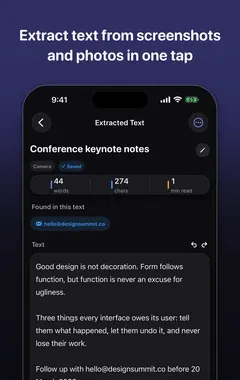
Yes. SnapText and Picture to Text read text from photos and screenshots on the device, offline, in many languages.
Sources
Related
More tools in this group
- Image compressor
- Image resizer
- Image converter
- Image to Base64
- Base64 to image
- Background remover
- Image colour picker
- Image blur tool
- Favicon generator
Guides and apps
- How to Extract Text From an Image on iPhone (3 Easy Ways)
- Screenshot to Text on Mac: Capture Any Area With Shift-Command-2
- 10 Tips for More Accurate OCR: Get Clean Text From Photos
- SnapText - Image to Text
- Picture to Text - ExtractText
Free apps from the maker of these tools
 SnapTextScan Images, Extract Text
 Resume BuilderAI Resume, Cover Letter PDF
 Picture to TextCopy Text from Images & PDFs
 UK Test PrepCitizenship, ILR & Visa Prep
 RoadTickHazard Perception & Mock Tests
 Secret CodesDial codes, SIM & network test
 Magnetic BlocksTangram Shape Fit Puzzle Game
 CheatlyOffline hints, guides & tips