 Secret Codes guide
Location Services For System Services on iPhone: How It Works
By Muhammad Shahid · · 4 min read
Quick answer
Control the location uses that no app is responsible for. Several parts of iOS use your location without being an app you can point at: location based suggestions, location based ads, networking and wireless, time zone setting and more. They are all listed under Settings, Privacy & Security, Location Services, System Services with an individual switch each.
Secret CodesDial codes, SIM & network test · Free on the App StoreDownload free →| What it does | Control the location uses that no app is responsible for. |
|---|---|
| Published for | any iPhone |
| Type | iOS setting |
Control the location uses that no app is responsible for. This page explains what it does, how to use it on an iPhone and which carriers it applies to.
I build Secret Codes: IMEI & Carrier, a free iPhone app with 317 checked codes and guides, including this one. If you would rather tap than memorise, get Secret Codes on the App Store.
What is Location Services For System Services?
Several parts of iOS use your location without being an app you can point at: location based suggestions, location based ads, networking and wireless, time zone setting and more. They are all listed under Settings, Privacy & Security, Location Services, System Services with an individual switch each.
At the bottom of that screen is Status Bar Icon, which makes the arrow appear whenever an enabled system service uses your location. Turning it on for a day is the cheapest way to find out what is actually happening.
Do not turn Location Services off wholesale. Apple warns that many important iPhone features stop working, and emergency location handling depends on it. Turn off the individual services you do not want instead.
Important: Turning Location Services off entirely breaks many features and affects how your location is handled by emergency and navigation services. Disable specific system services rather than the master switch.
How do I do it?
- Open the Settings app.
- Tap Privacy & Security, then tap Location Services.
- Scroll to the bottom and tap System Services.
- Turn off the individual services you do not want, and turn on Status Bar Icon to watch what is used.
Which carriers does this apply to?
| Published for | any iPhone |
|---|---|
| Type | iOS setting |
| Good to know | Available on iOS 17, 18 and 26. Which services are listed varies slightly with region and iPhone model. |
Related iphone phone and message settings
- Significant Locations And Routes
- Low Power Mode And What It Turns Off
- App Privacy Report
- Quick Start To A New iPhone
- Sound Recognition
- Back Up To iCloud Before A Carrier Swap
See all iphone phone and message settings or every category of iPhone codes.
How Secret Codes helps
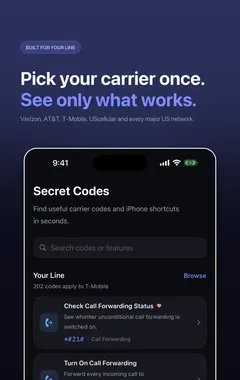
Secret Codes keeps this and every other entry a search away. Pick your carrier once and each entry says whether it is published for your line. You can save favourites, add a private note, and record whether a code worked on your line. This entry is part of Secret Codes Pro.
Frequently asked questions
What is Location Services For System Services on iPhone?
Control the location uses that no app is responsible for. Several parts of iOS use your location without being an app you can point at: location based suggestions, location based ads, networking and wireless, time zone setting and more.
What else should I know about Location Services For System Services?
They are all listed under Settings, Privacy & Security, Location Services, System Services with an individual switch each. At the bottom of that screen is Status Bar Icon, which makes the arrow appear whenever an enabled system service uses your location.
What are the steps for Location Services For System Services?
1. Open the Settings app. 2. Tap Privacy & Security, then tap Location Services. 3. Scroll to the bottom and tap System Services. 4. Turn off the individual services you do not want, and turn on Status Bar Icon to watch what is used.
Where do I find Location Services For System Services?
In the Settings app on your iPhone.
Is there a dial code for Location Services For System Services?
No. On iPhone this is not a dial code, so you use the steps on this page instead.
Which carriers does Location Services For System Services work on?
It is published for any iPhone. Available on iOS 17, 18 and 26. Which services are listed varies slightly with region and iPhone model.
Is there anything to watch out for with Location Services For System Services?
Turning Location Services off entirely breaks many features and affects how your location is handled by emergency and navigation services. Disable specific system services rather than the master switch.
Does Location Services For System Services work on Android phones too?
These steps are for iPhone. Android phones have their own menus.
Will Location Services For System Services work outside the US?
The iPhone steps stay the same, although some features depend on your carrier and region.
What if Location Services For System Services does not work on my iPhone?
Check that it applies to your carrier first, because carriers decide which services they offer and can change them. If it should apply to your line, contact your carrier.
What is related to Location Services For System Services?
Significant Locations And Routes. The quiet history of where you go, and how to clear or stop it.
What else is in this category?
Low Power Mode And What It Turns Off. The battery saver quietly changes 5G, background refresh and email fetch.
Sources
Secret CodesDownload free