 Secret Codes guide
Hearing Devices And Hearing Aid Compatibility on iPhone: How It Works
By Muhammad Shahid · · 4 min read
Quick answer
Pair MFi hearing aids and route call audio straight to them. Settings, Accessibility, Hearing Devices is where Made for iPhone hearing aids and sound processors are paired and controlled. Turn Bluetooth on first, open that screen, then power your hearing devices off and back on so they appear under MFi Hearing Devices. Pairing can take up to sixty seconds.
Secret CodesDial codes, SIM & network test · Free on the App StoreDownload free →| What it does | Pair MFi hearing aids and route call audio straight to them. |
|---|---|
| Published for | any iPhone |
| Type | iOS setting |
Pair MFi hearing aids and route call audio straight to them. This page explains what it does, how to use it on an iPhone and which carriers it applies to.
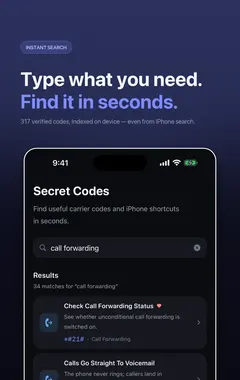
I build Secret Codes: IMEI & Carrier, a free iPhone app with 317 checked codes and guides, including this one. If you would rather tap than memorise, get Secret Codes on the App Store.
What is Hearing Devices And Hearing Aid Compatibility?
Settings, Accessibility, Hearing Devices is where Made for iPhone hearing aids and sound processors are paired and controlled. Turn Bluetooth on first, open that screen, then power your hearing devices off and back on so they appear under MFi Hearing Devices. Pairing can take up to sixty seconds.
Once paired you can choose whether phone and media audio route to the hearing device, whether ringtones play through it, and adjust ambient microphone volume. Turning on Control on Lock Screen puts those controls where you can reach them during a call.
The separate Hearing Aid Compatibility switch on the same screen changes how the iPhone drives its audio hardware to reduce interference with some hearing aid models. It is worth trying if you get buzzing on calls.
How do I do it?
- Open the Settings app, tap Bluetooth and make sure it is on.
- Tap Accessibility, then tap Hearing Devices.
- Turn your hearing devices off and back on, then tap their name under MFi Hearing Devices and accept the pairing prompts.
- Turn on Hearing Aid Compatibility on the same screen if you get interference on calls.
Which carriers does this apply to?
| Published for | any iPhone |
|---|---|
| Type | iOS setting |
| Good to know | Available on iOS 17, 18 and 26. MFi pairing needs a hearing device on Apple's compatible list. Hearing Aid Compatibility helps with some hearing aid models, not all. |
Related iphone phone and message settings
- Flash For Alerts
- Live Captions On Calls
- Allow Cellular Data Switching
- Background Sounds
- Allow More Data On 5G
- Sound Recognition
See all iphone phone and message settings or every category of iPhone codes.
How Secret Codes helps
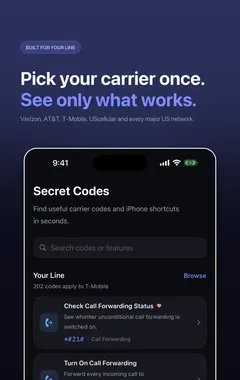
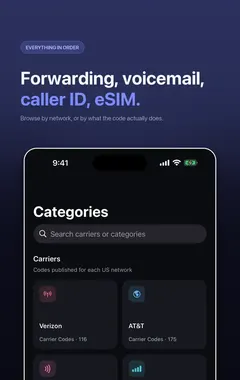
Secret Codes keeps this and every other entry a search away. Pick your carrier once and each entry says whether it is published for your line. You can save favourites, add a private note, and record whether a code worked on your line.
Frequently asked questions
What is Hearing Devices And Hearing Aid Compatibility on iPhone?
Pair MFi hearing aids and route call audio straight to them. Settings, Accessibility, Hearing Devices is where Made for iPhone hearing aids and sound processors are paired and controlled.
What else should I know about Hearing Devices And Hearing Aid Compatibility?
Turn Bluetooth on first, open that screen, then power your hearing devices off and back on so they appear under MFi Hearing Devices. Pairing can take up to sixty seconds. Once paired you can choose whether phone and media audio route to the hearing device, whether ringtones play through it, and adjust ambient microphone volume.
What are the steps for Hearing Devices And Hearing Aid Compatibility?
1. Open the Settings app, tap Bluetooth and make sure it is on. 2. Tap Accessibility, then tap Hearing Devices. 3. Turn your hearing devices off and back on, then tap their name under MFi Hearing Devices and accept the pairing prompts. 4. Turn on Hearing Aid Compatibility on the same screen if you get interference on calls.
Where do I find Hearing Devices And Hearing Aid Compatibility?
In the Settings app on your iPhone.
Is there a dial code for Hearing Devices And Hearing Aid Compatibility?
No. On iPhone this is not a dial code, so you use the steps on this page instead.
Which carriers does Hearing Devices And Hearing Aid Compatibility work on?
It is published for any iPhone. Available on iOS 17, 18 and 26. MFi pairing needs a hearing device on Apple's compatible list. Hearing Aid Compatibility helps with some hearing aid models, not all.
Does Hearing Devices And Hearing Aid Compatibility work on Android phones too?
These steps are for iPhone. Android phones have their own menus.
Will Hearing Devices And Hearing Aid Compatibility work outside the US?
The iPhone steps stay the same, although some features depend on your carrier and region.
What if Hearing Devices And Hearing Aid Compatibility does not work on my iPhone?
Check that it applies to your carrier first, because carriers decide which services they offer and can change them. If it should apply to your line, contact your carrier.
What is related to Hearing Devices And Hearing Aid Compatibility?
Flash For Alerts. Blink the camera LED, the screen, or both when a call comes in.
What else is in this category?
Live Captions On Calls. Real time on-screen transcription of what the other person is saying.
Can I find Hearing Devices And Hearing Aid Compatibility in an app?
Yes. Secret Codes, a free iPhone app, includes it with its steps and carrier details.
Sources
Secret CodesDownload free