 Secret Codes guide
Emergency SOS on iPhone: How It Works
By Muhammad Shahid · · 3 min read
Quick answer
How your iPhone reaches emergency services. Holding the side button with either volume button starts an Emergency SOS countdown; pressing the side button five times does the same. Releasing after the countdown places the call and notifies your emergency contacts with your location.
Secret CodesDial codes, SIM & network test · Free on the App StoreDownload free →| What it does | How your iPhone reaches emergency services. |
|---|---|
| Published for | any iPhone, Verizon, AT&T, T-Mobile and UScellular |
| Type | Works on all iPhones |
How your iPhone reaches emergency services. This page explains what it does, how to use it on an iPhone and which carriers it applies to.
What is Emergency SOS?
Holding the side button with either volume button starts an Emergency SOS countdown; pressing the side button five times does the same. Releasing after the countdown places the call and notifies your emergency contacts with your location.
Emergency calls connect on any available network, including one you have no subscription with, and work with no SIM installed. Caller ID blocking is always ignored for these calls.
Important: Never dial 911 to test this. To check your emergency contacts and Medical ID, open the Health app instead.
How do I do it?
- Open the Settings app and tap Emergency SOS to review how the shortcut behaves.
- Open the Health app, tap your picture, then Medical ID.
- Add your emergency contacts and any critical medical details.
- Turn on Show When Locked so responders can see it.
Which carriers does this apply to?
| Published for | any iPhone, Verizon, AT&T, T-Mobile and UScellular |
|---|---|
| Type | Works on all iPhones |
| Good to know | Works on every iPhone on every network, and without a SIM. |
Related iphone calling features
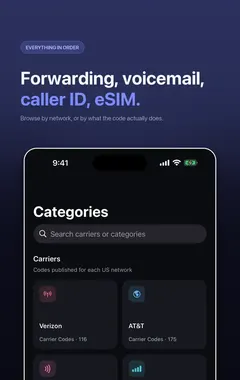
See all iphone calling features or every category of iPhone codes.
How Secret Codes helps
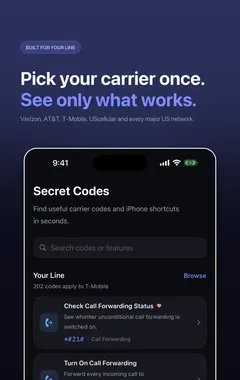
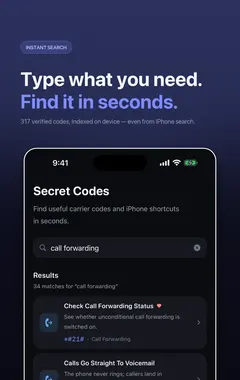
Secret Codes keeps this and every other entry a search away. Pick your carrier once and each entry says whether it is published for your line. You can save favourites, add a private note, and record whether a code worked on your line.
Frequently asked questions
What is Emergency SOS on iPhone?
How your iPhone reaches emergency services. Holding the side button with either volume button starts an Emergency SOS countdown; pressing the side button five times does the same. Releasing after the countdown places the call and notifies your emergency contacts with your location.
What else should I know about Emergency SOS?
Emergency calls connect on any available network, including one you have no subscription with, and work with no SIM installed. Caller ID blocking is always ignored for these calls.
What are the steps for Emergency SOS?
1. Open the Settings app and tap Emergency SOS to review how the shortcut behaves. 2. Open the Health app, tap your picture, then Medical ID. 3. Add your emergency contacts and any critical medical details. 4. Turn on Show When Locked so responders can see it.
Where do I find Emergency SOS?
On your iPhone, following the steps on this page.
Which carriers does Emergency SOS work on?
It is published for any iPhone, Verizon, AT&T, T-Mobile and UScellular. Works on every iPhone on every network, and without a SIM.
Is there anything to watch out for with Emergency SOS?
Never dial 911 to test this. To check your emergency contacts and Medical ID, open the Health app instead.
Does Emergency SOS work on Android phones too?
These steps are for iPhone. Android phones have their own menus.
Will Emergency SOS work outside the US?
The iPhone steps stay the same, although some features depend on your carrier and region.
What if I cannot get through?
If you or someone else is in immediate danger, call 911.
What is related to Emergency SOS?
Emergency SOS via Satellite. Reach help where there is no cellular coverage at all.
What else is in this category?
Announce Calls. Have Siri read out who is calling.
Sources
Secret CodesDownload free