 Secret Codes guide
Call Audio Routing on iPhone: How It Works
By Muhammad Shahid · · 3 min read
Quick answer
Force calls to speaker or a headset automatically. Sets where call audio goes by default: the earpiece, the speaker, or a connected Bluetooth device. Setting it to Speaker permanently is a practical workaround for a failing earpiece speaker while you wait for a repair.
Secret CodesDial codes, SIM & network test · Free on the App StoreDownload free →| What it does | Force calls to speaker or a headset automatically. |
|---|---|
| Published for | any iPhone |
| Type | iOS setting |
Force calls to speaker or a headset automatically. This page explains what it does, how to use it on an iPhone and which carriers it applies to.
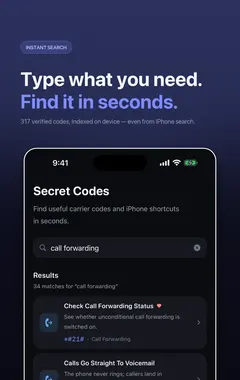
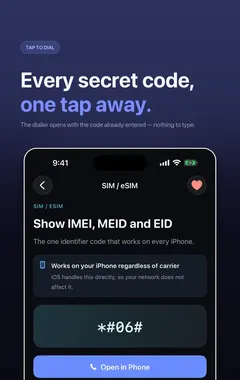
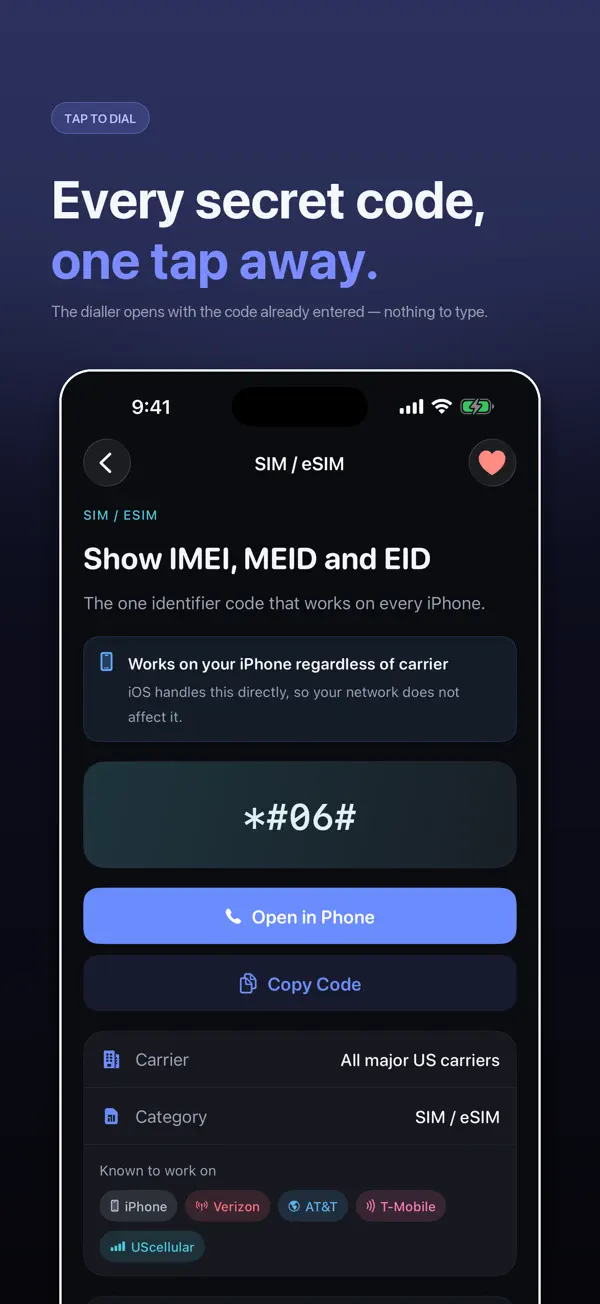
I build Secret Codes: IMEI & Carrier, a free iPhone app with 317 checked codes and guides, including this one. If you would rather tap than memorise, get Secret Codes on the App Store.
What is Call Audio Routing?
Sets where call audio goes by default: the earpiece, the speaker, or a connected Bluetooth device. Setting it to Speaker permanently is a practical workaround for a failing earpiece speaker while you wait for a repair.
How do I do it?
- Open the Settings app.
- Tap Accessibility, then Touch.
- Tap Call Audio Routing.
- Choose Automatic, Bluetooth Headset or Speaker.
Which carriers does this apply to?
| Published for | any iPhone |
|---|---|
| Type | iOS setting |
| Good to know | Available on every iPhone under Accessibility. |
Related iphone calling features
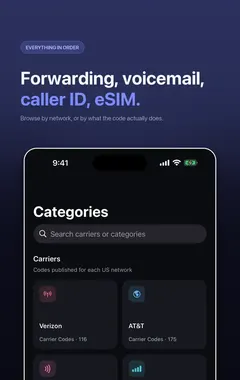
See all iphone calling features or every category of iPhone codes.
How Secret Codes helps
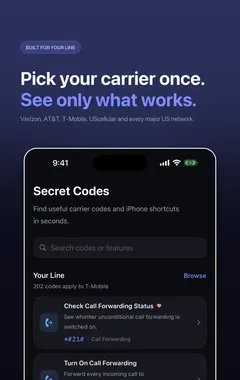
Secret Codes keeps this and every other entry a search away. Pick your carrier once and each entry says whether it is published for your line. You can save favourites, add a private note, and record whether a code worked on your line.
Frequently asked questions
What is Call Audio Routing on iPhone?
Force calls to speaker or a headset automatically. Sets where call audio goes by default: the earpiece, the speaker, or a connected Bluetooth device. Setting it to Speaker permanently is a practical workaround for a failing earpiece speaker while you wait for a repair.
What are the steps for Call Audio Routing?
1. Open the Settings app. 2. Tap Accessibility, then Touch. 3. Tap Call Audio Routing. 4. Choose Automatic, Bluetooth Headset or Speaker.
Where do I find Call Audio Routing?
In the Settings app on your iPhone.
Is there a dial code for Call Audio Routing?
No. On iPhone this is not a dial code, so you use the steps on this page instead.
Which carriers does Call Audio Routing work on?
It is published for any iPhone. Available on every iPhone under Accessibility.
Does Call Audio Routing work on Android phones too?
These steps are for iPhone. Android phones have their own menus.
Will Call Audio Routing work outside the US?
The iPhone steps stay the same, although some features depend on your carrier and region.
What if Call Audio Routing does not work on my iPhone?
Check that it applies to your carrier first, because carriers decide which services they offer and can change them. If it should apply to your line, contact your carrier.
What is related to Call Audio Routing?
Announce Calls. Have Siri read out who is calling.
What else is in this category?
Auto-Answer Calls. Pick up automatically after a set delay.
Can I find Call Audio Routing in an app?
Yes. Secret Codes, a free iPhone app, includes it with its steps and carrier details.
Can I save Call Audio Routing for later?
Yes. In Secret Codes you can save it to your favourites and add a private note, which stays on your iPhone.
Sources
Secret CodesDownload free