 Secret Codes guide
Add An eSIM on iPhone: How It Works
By Muhammad Shahid · · 3 min read
Quick answer
Activate a new line without a physical SIM card. iOS can install an eSIM three ways: by scanning a QR code from your carrier, by using a carrier app that supports eSIM Activation, or by transferring a line from another iPhone nearby.
Secret CodesDial codes, SIM & network test · Free on the App StoreDownload free →| What it does | Activate a new line without a physical SIM card. |
|---|---|
| Published for | any iPhone, Verizon, AT&T, T-Mobile and UScellular |
| Type | iOS setting |
Activate a new line without a physical SIM card. This page explains what it does, how to use it on an iPhone and which carriers it applies to.
I build Secret Codes: IMEI & Carrier, a free iPhone app with 317 checked codes and guides, including this one. If you would rather tap than memorise, get Secret Codes on the App Store.
What is Add An eSIM?
iOS can install an eSIM three ways: by scanning a QR code from your carrier, by using a carrier app that supports eSIM Activation, or by transferring a line from another iPhone nearby.
iPhone 14 and later sold in the United States have no SIM tray at all, so eSIM is the only option on those models.
How do I do it?
- Open the Settings app.
- Tap Cellular.
- Tap Add eSIM (or Add Cellular Plan).
- Scan your carrier's QR code, or choose Transfer From Nearby iPhone.
- Follow the prompts and give the line a label.
Which carriers does this apply to?
| Published for | any iPhone, Verizon, AT&T, T-Mobile and UScellular |
|---|---|
| Type | iOS setting |
| Good to know | iPhone XS and later. All four major US carriers support eSIM, though activation flows differ. |
Related sim and esim
- Check Whether Your iPhone Is Unlocked
- Transfer An eSIM To A New iPhone
- Find Your EID
- Remove An eSIM
- Find Your ICCID
- Set A SIM PIN
See all sim and esim or every category of iPhone codes.
How Secret Codes helps
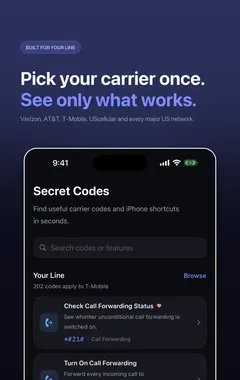
Secret Codes keeps this and every other entry a search away. Pick your carrier once and each entry says whether it is published for your line. You can save favourites, add a private note, and record whether a code worked on your line.
Frequently asked questions
What is Add An eSIM on iPhone?
Activate a new line without a physical SIM card. iOS can install an eSIM three ways: by scanning a QR code from your carrier, by using a carrier app that supports eSIM Activation, or by transferring a line from another iPhone nearby.
What else should I know about Add An eSIM?
iPhone 14 and later sold in the United States have no SIM tray at all, so eSIM is the only option on those models.
What are the steps for Add An eSIM?
1. Open the Settings app. 2. Tap Cellular. 3. Tap Add eSIM (or Add Cellular Plan). 4. Scan your carrier's QR code, or choose Transfer From Nearby iPhone. 5. Follow the prompts and give the line a label.
Where do I find Add An eSIM?
In the Settings app on your iPhone.
Is there a dial code for Add An eSIM?
No. On iPhone this is not a dial code, so you use the steps on this page instead.
Which carriers does Add An eSIM work on?
It is published for any iPhone, Verizon, AT&T, T-Mobile and UScellular. iPhone XS and later. All four major US carriers support eSIM, though activation flows differ.
Does Add An eSIM work on Android phones too?
These steps are for iPhone. Android phones have their own menus.
Will Add An eSIM work outside the US?
The iPhone steps stay the same, although some features depend on your carrier and region.
What if Add An eSIM does not work on my iPhone?
Check that it applies to your carrier first, because carriers decide which services they offer and can change them. If it should apply to your line, contact your carrier.
What is related to Add An eSIM?
Check Whether Your iPhone Is Unlocked. See if your iPhone will accept another carrier's SIM.
What else is in this category?
Transfer An eSIM To A New iPhone. Move your line across without contacting your carrier.
Can I find Add An eSIM in an app?
Yes. Secret Codes, a free iPhone app, includes it with its steps and carrier details.
Sources
Secret CodesDownload free